Navigating the portal
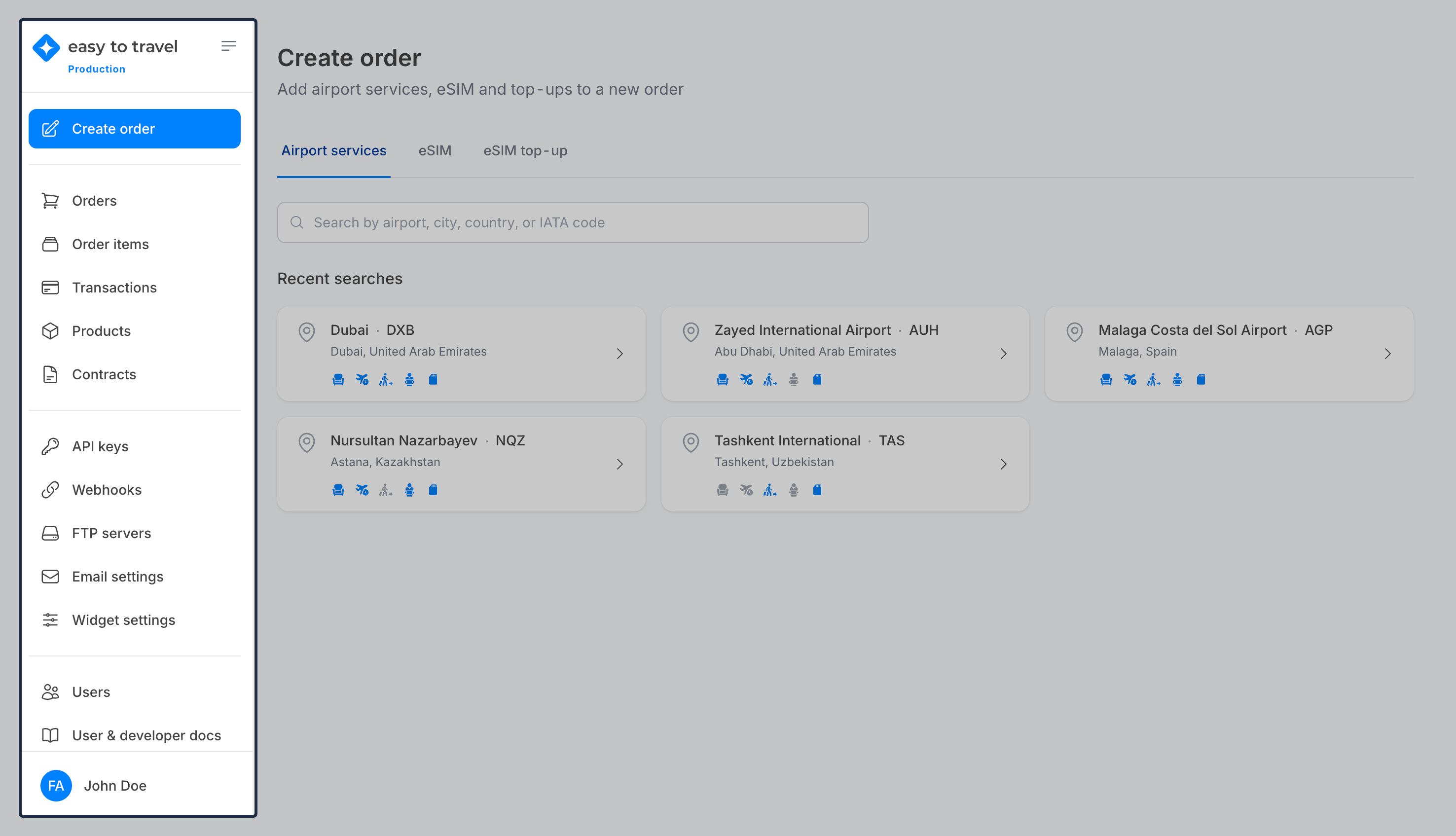
The sidebar
The sidebar is grouped into four blocks.
Selling
| Item | What it does |
|---|---|
| Create order | Search and book airport services, eSIMs and eSIM top-ups. See Create order. |
Reporting
| Item | What it does |
|---|---|
| Orders | Every order you have placed, and the actions available on each one. |
| Order items | Every individual booked item across all orders. |
| Transactions | Every sale and refund. |
| Products | The catalogue available under your contracts. |
| Contracts | Balances and per-contract booking options. |
Integrations (Admin only)
| Item | What it does |
|---|---|
| API keys | Keys used to call the easy to travel API. |
| Webhooks | HTTP callbacks fired on product and order events. |
| FTP servers | sFTP destinations for automated XML event files. |
| Email settings | SMTP server and the voucher email templates. |
| Widget settings | Configure and embed the B2C booking widget. |
Administration
| Item | What it does |
|---|---|
| Users (Admin only) | Team members and their roles. |
| User & developer docs | Opens this documentation site in a new tab. |
Items you do not have permission for are not shown at all. If a section named in this guide is missing from your sidebar, your role does not include it — see Permissions.
Collapsing the sidebar
Click the icon to the right of the easy to travel logo to collapse the sidebar to icons only, which gives the working area more room. Click it again to expand.
The contract selector
If your account has more than one contract, a Contract selector appears in the top-right corner of the Create order page. Everything you do downstream — which products you see, which prices apply, and which contract is debited — follows the contract selected here.
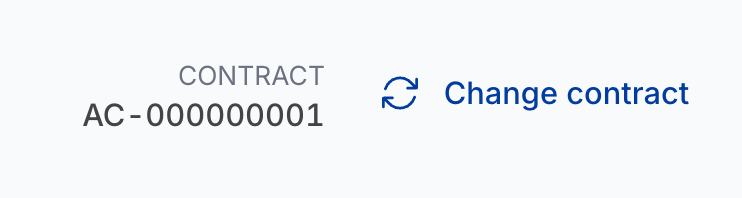
Once you are inside a search, the header shows the active contract with a Change contract link next to it.
Changing contract mid-flow empties your cart, because prices and availability are contract-specific. Finish or clear the current cart first.
The account menu
Click your name at the bottom of the sidebar to open the account menu.
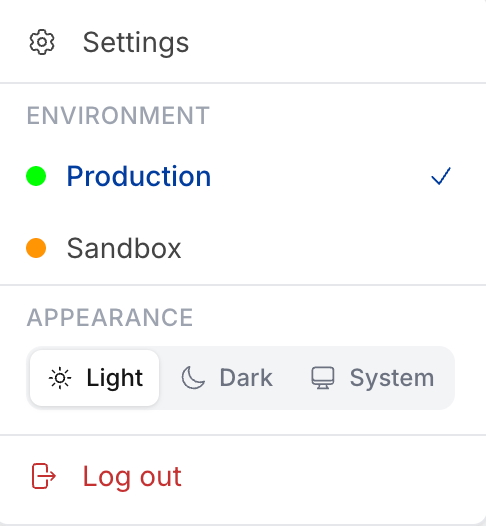
| Item | What it does |
|---|---|
| Settings | Opens your account settings — name, password, notifications. See Settings. |
| Environment | Shows the current environment and lets you switch, if you have access to more than one. |
| Appearance | Choose Light, Dark, or System (follows your operating system setting). |
| Log out | Ends your session. |
Screens that use tables
Most reporting and integration screens are tables that behave identically — same sorting, filtering, pagination and Excel export. Those shared behaviours are documented once in Working with tables.