Settings
Settings is your personal account page — it affects only you, not your organisation. Open it from the account menu at the bottom of the sidebar.
It has four tabs.
Personal data
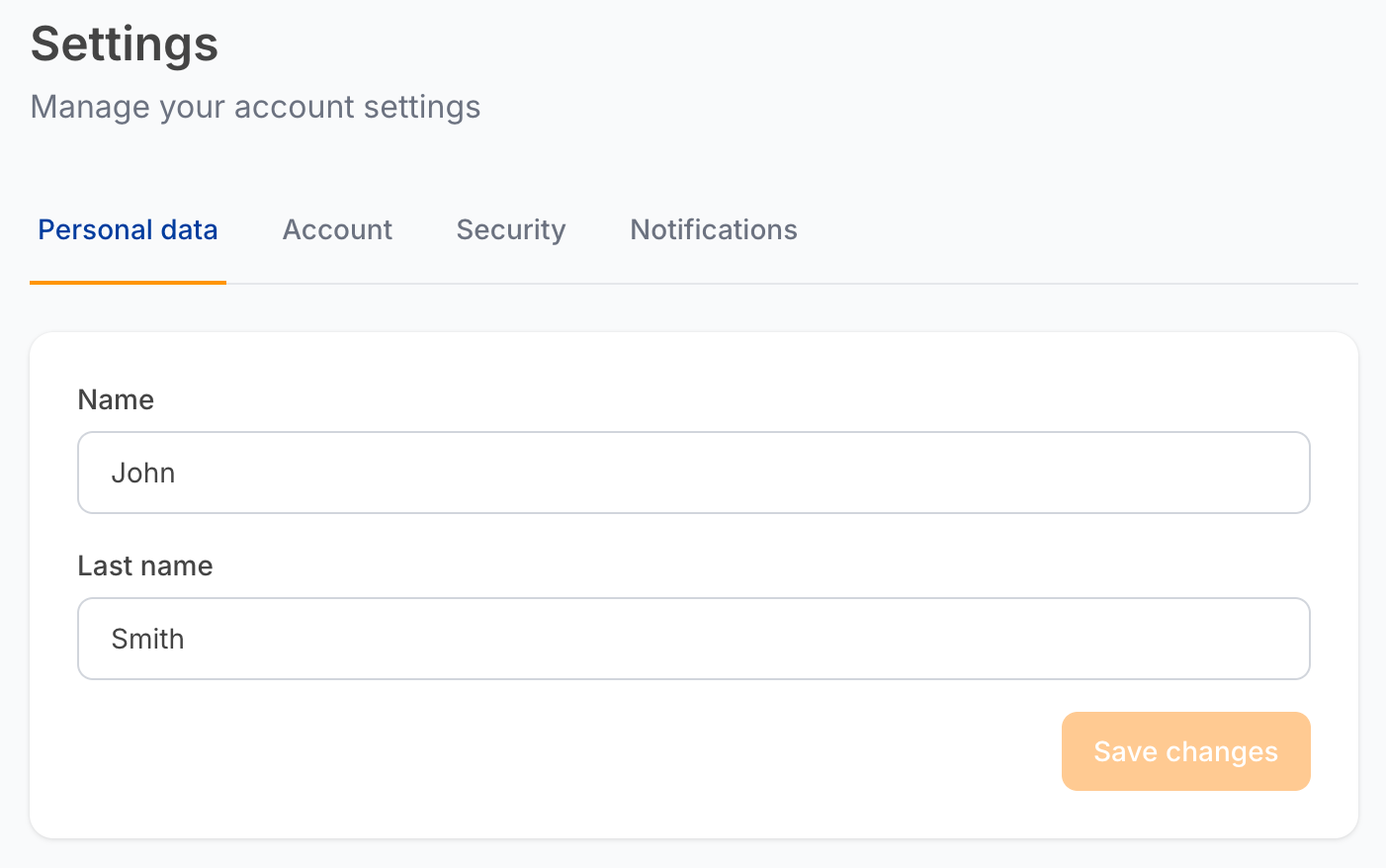
Edit your Name and Last name, then click Save changes. This is the name shown in the sidebar and recorded as the Author on orders you create.
Account
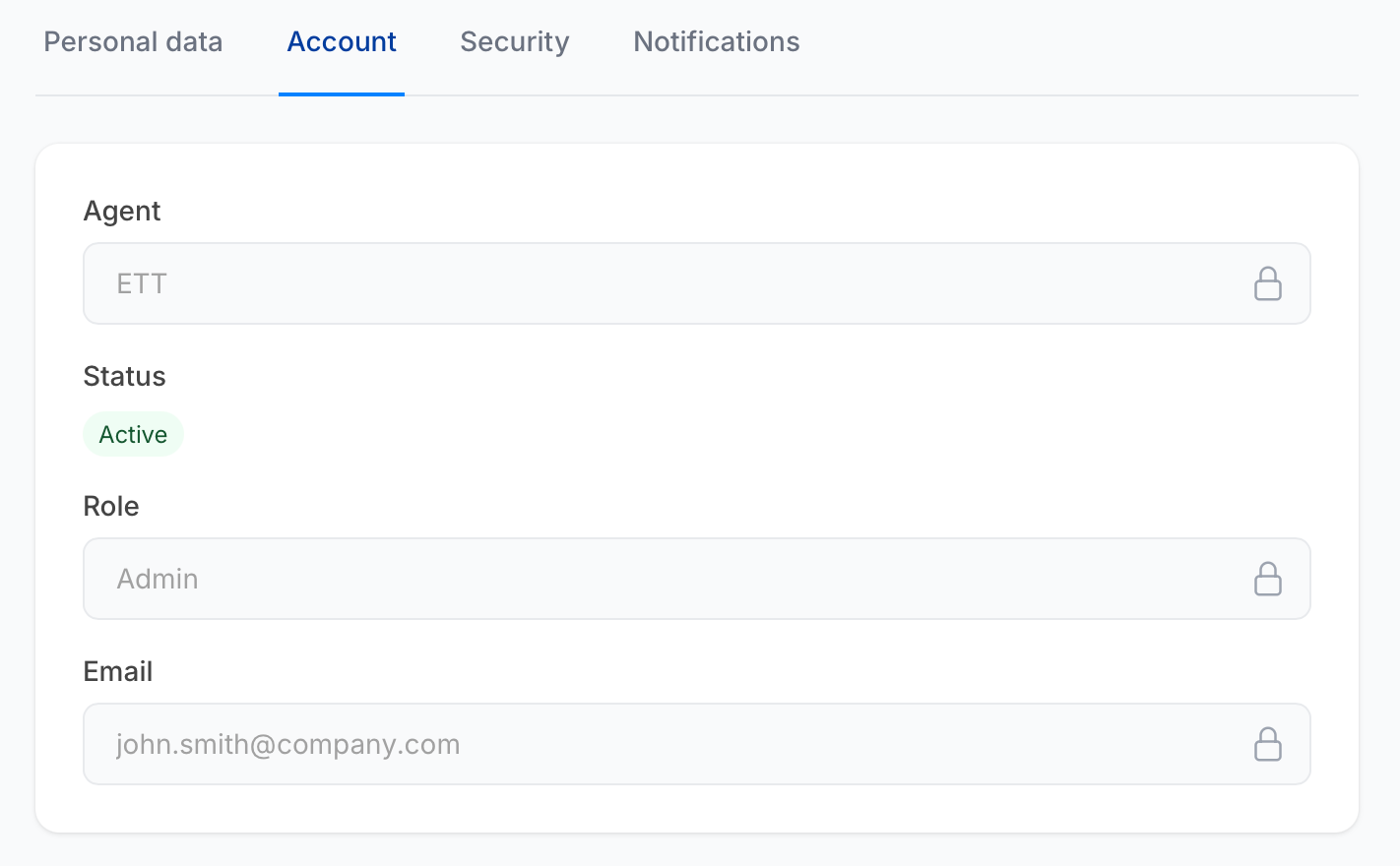
Read-only information about your account.
| Field | What it shows |
|---|---|
| Agent | The agent organisation you belong to. |
| Status | Active or Inactive. |
| Role | Agent, Accountant or Admin — see Roles. |
| Your sign-in address. |
To change any of these, ask an Admin on your team — see Users.
Security
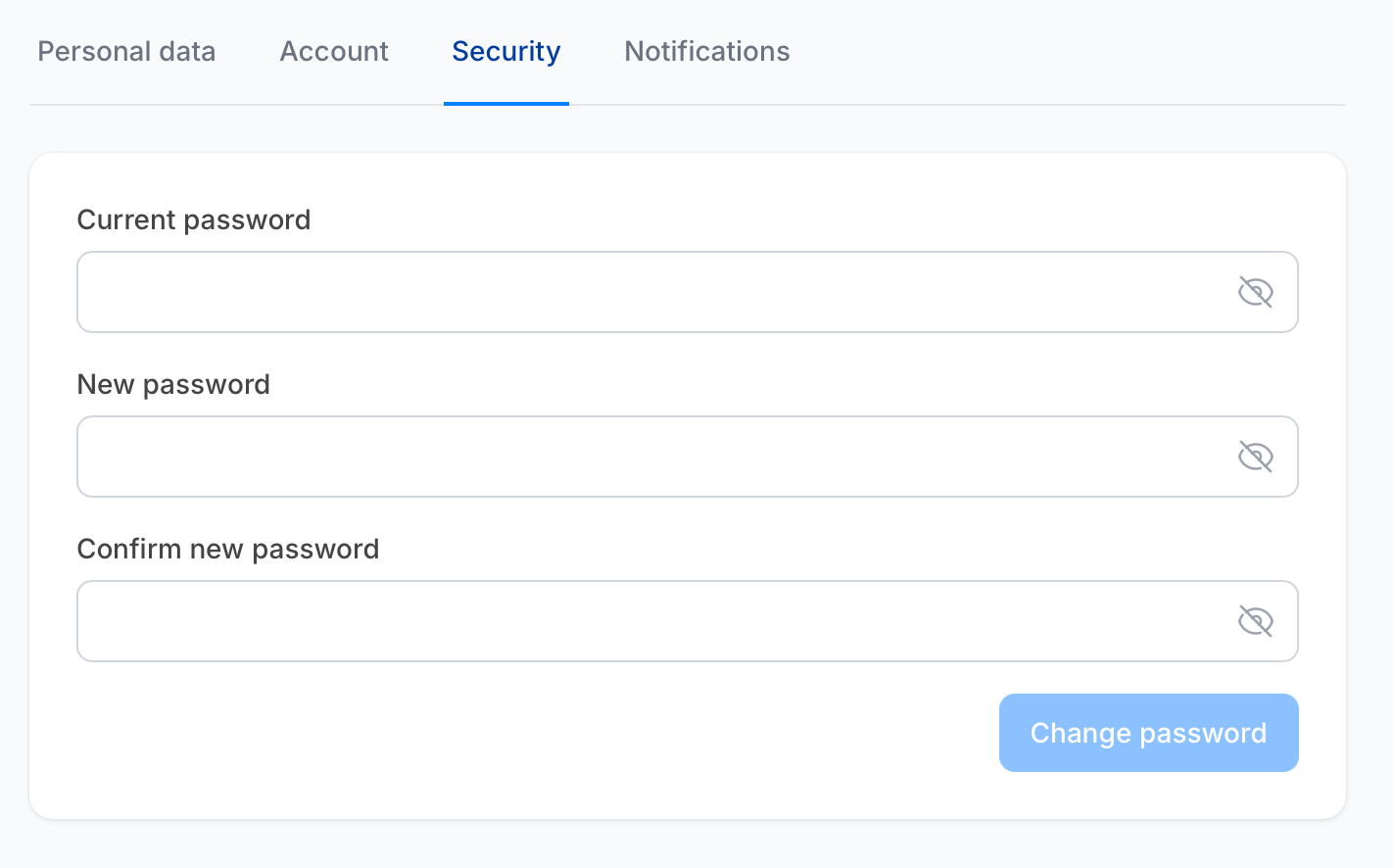
- Enter your Current password.
- Enter a New password — minimum 8 characters, with at least one uppercase letter, one number and one special character.
- Re-enter it in Confirm new password.
- Click Change password.
Use the eye icon in each field to reveal what you have typed.
If you have forgotten your current password, sign out and use Forgot password on the sign-in page instead.
Notifications
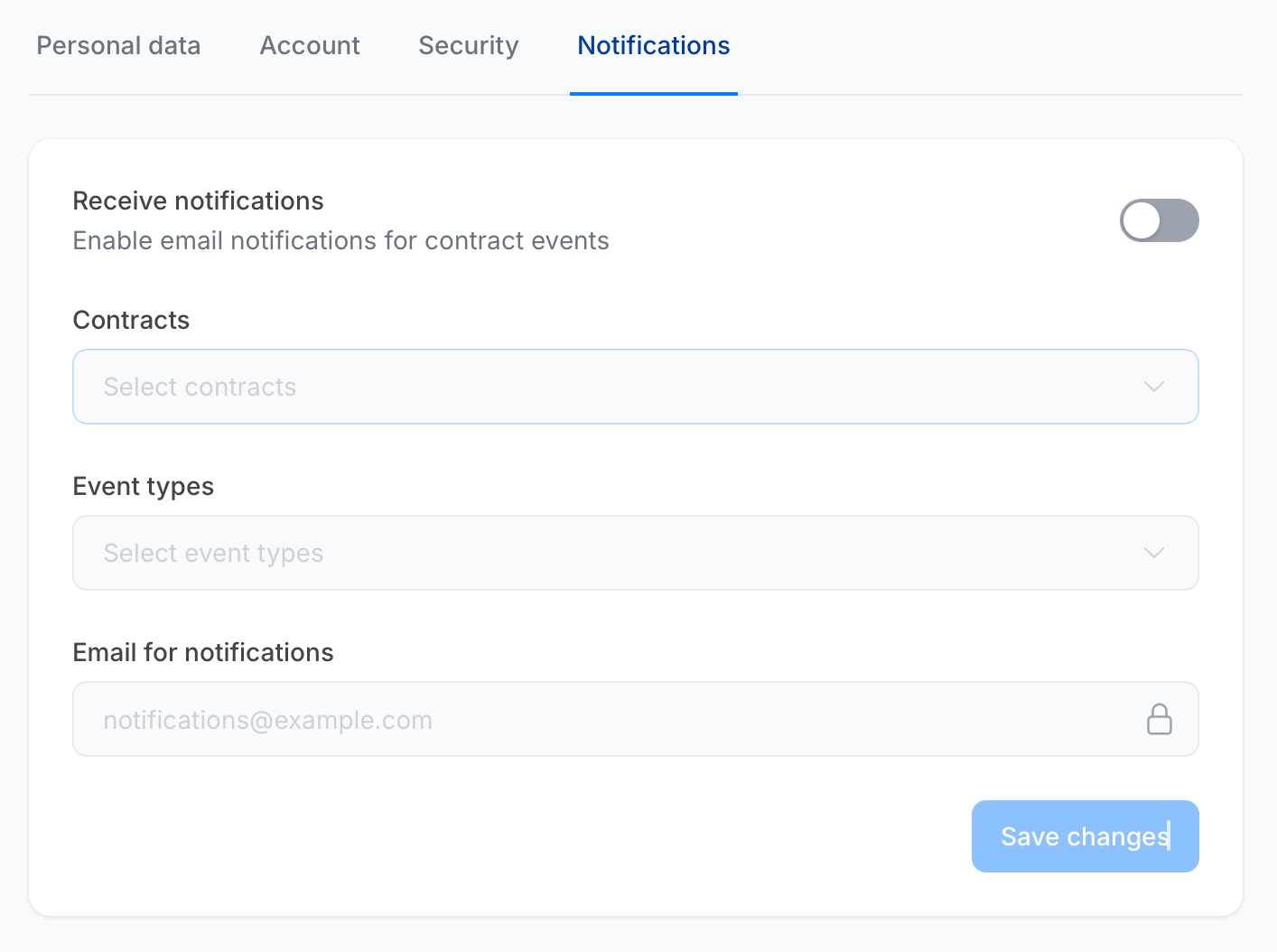
Email alerts about catalogue changes on the contracts you care about.
| Field | Notes |
|---|---|
| Receive notifications | Master switch. When off, everything below is inactive and no emails are sent. |
| Contracts | Which contracts to watch. Only contracts available to you are listed. |
| Event types | Product updated, Product added, Product removed. Select as many as you want. |
| Email for notifications | Where the alerts go. Defaults to your sign-in address; change it to route alerts to a shared mailbox. |
Click Save changes.
These notifications are for humans. If you want your systems to react to catalogue changes, use Webhooks, which cover the same events plus order events.