Working with tables
Orders, Order items, Transactions, Products, Contracts, Users, API keys, Webhooks, FTP servers and Widget settings all use the same table component. Learn it once and it applies everywhere.

The toolbar
| Control | What it does |
|---|---|
| Refresh | Re-fetches the data without reloading the page. |
| Reset view | Appears once you have applied any sort or filter. Clears them all and returns the table to its default state. |
| Download Excel | Exports the table to an .xlsx file. |
Some tables add their own actions to this toolbar — for example Create on Webhooks, FTP servers, Users and Widget settings, or Refund / Download voucher / Send voucher inside an order.
Sorting
Columns that can be sorted show a pair of small arrows next to the heading. Click the heading to sort ascending, click again for descending. The active sort column is highlighted.
Column filters
Columns that can be filtered show a funnel icon next to the heading. Click it to open the filter panel for that column.
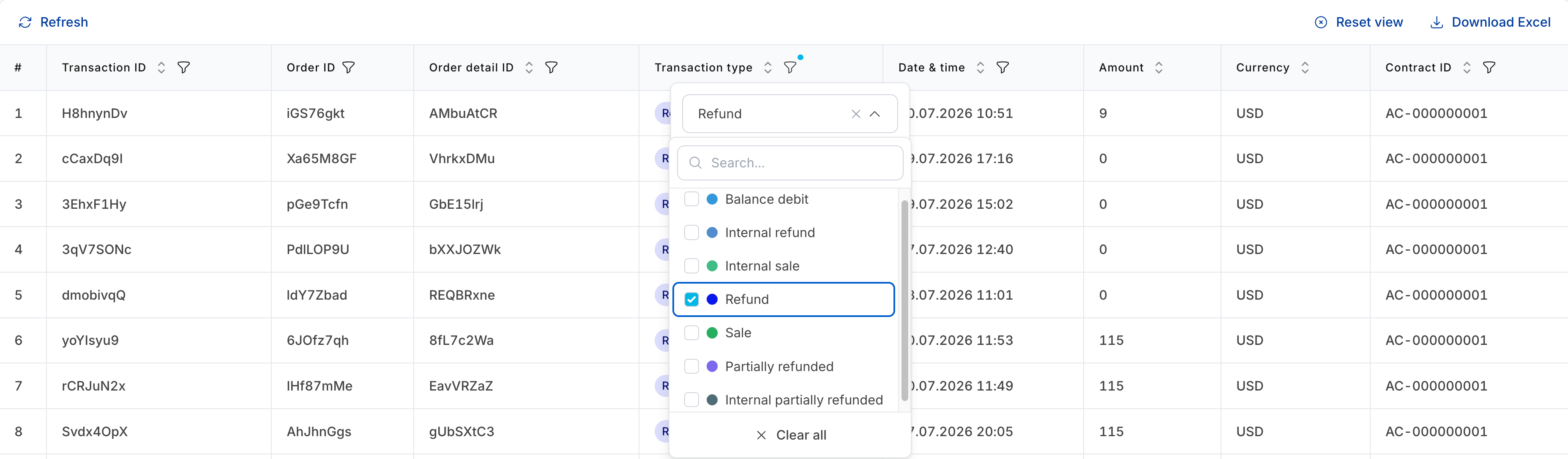
The panel offers a Search box and a checkbox for each available value. Tick the values you want to keep. Filters from different columns combine — the table shows rows that match all of them.
To clear filtering, untick the values, or click Reset view in the toolbar to clear everything at once.
Column filters affect the Excel export. Whatever the table is showing is exactly what gets exported — filter first, then click Download Excel.
Pagination
Below the table:
- Rows per page — choose how many rows to show at a time.
- Showing X to Y of Z results — the current window and the total after filtering.
- Page controls — first page, previous, next, last.
Excel export
Click Download Excel to export. The file downloads through your browser and contains the same columns and the same rows the table is currently showing.
Export file names include the date and time of the export, for example
Webhooks_26112025_1152.xlsx (Name_DDMMYYYY_HHMM.xlsx).