Webhooks
The Webhooks section allows partners to receive automatic notifications when specific events occur.
This page provides a list of all configured webhooks, including their target URL, subscribed event types, and status.
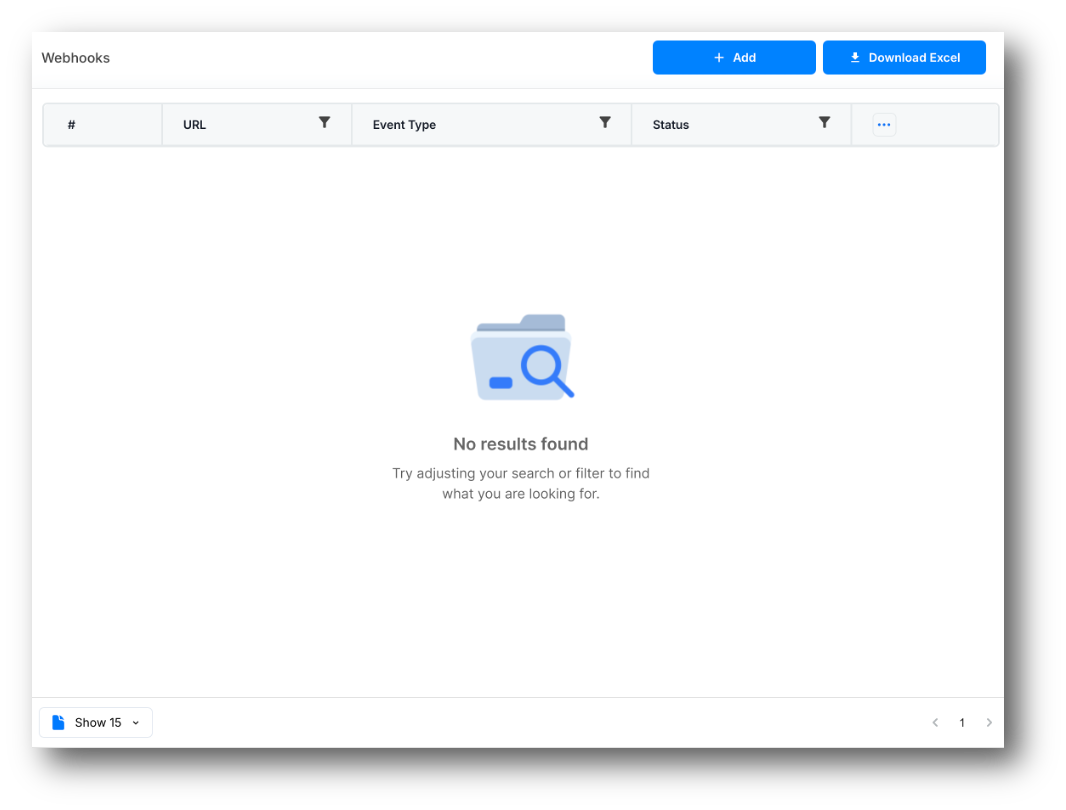
The table displays all configured webhooks with the following columns:
- No: Sequential webhook number.
- URL: The endpoint URL that will receive the webhook payload.
- Event type: The type of event that triggers the webhook.
- Status: Whether the webhook is Active or Inactive.
- Actions: Edit or delete the webhook.
Download Excel button
Click the Download Excel button to export the webhooks table to Excel format.
Column filtering is available in all tables, and this filtering will affect the data exported to Excel.
Add a webhook
Click the Add button to open the webhook creation form.
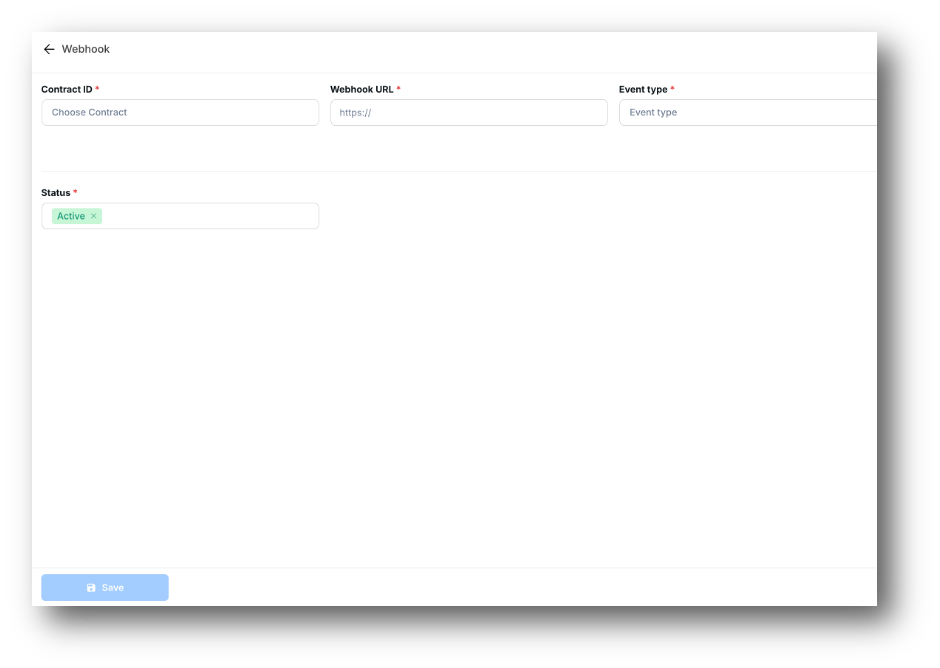
Webhook form fields
- Contract ID — select the agent contract this webhook applies to.
- URL — enter the HTTPS endpoint URL that will receive POST requests when the event fires.
- Event type — select the event that triggers the webhook:
- Flight delay status change — triggered when the flight status changes for a Delay Care booking (e.g., from Scheduled to Delayed).
- Product added — triggered when a new product becomes available under the contract.
- Product updated — triggered when an existing product is updated.
- Product removed — triggered when a product is removed from the contract.
- Status — set the webhook to Active or Inactive. Only active webhooks will send notifications.
Save
After filling in all required fields, click the Save button to create the webhook.
Download Excel
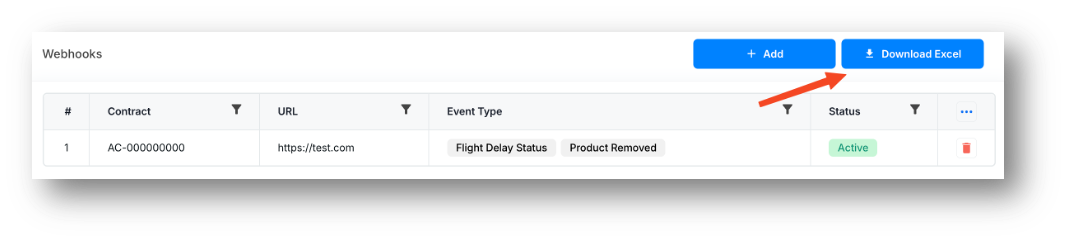 The Download Excel button allows users to export the full list of configured webhooks into an Excel file (.xlsx). When the user clicks Download Excel, the system automatically generates and downloads an Excel file.
The file name includes the current date and time using the format:
Example: Webhooks_26112025_1152.xlsx.
Excel file structure The exported file contains the following columns:
| Contract | URL | Event Type | Status |
|---|---|---|---|
| Contract ID associated with the webhook | Webhook endpoint | Selected event types | Active / Inactive |
Edit a webhook
Click the edit icon in the Actions column for the desired webhook. The same form used for creation will open with the current values pre-filled. Make your changes and click Save.
Delete a webhook
Click the delete icon in the Actions column to remove the webhook. Deleted webhooks cannot be recovered.