Lounges
Search for an airport
On Create order — Airport services, type into the search field. You can enter an airport name, a city, a country, or an IATA code. Suggestions appear as you type.
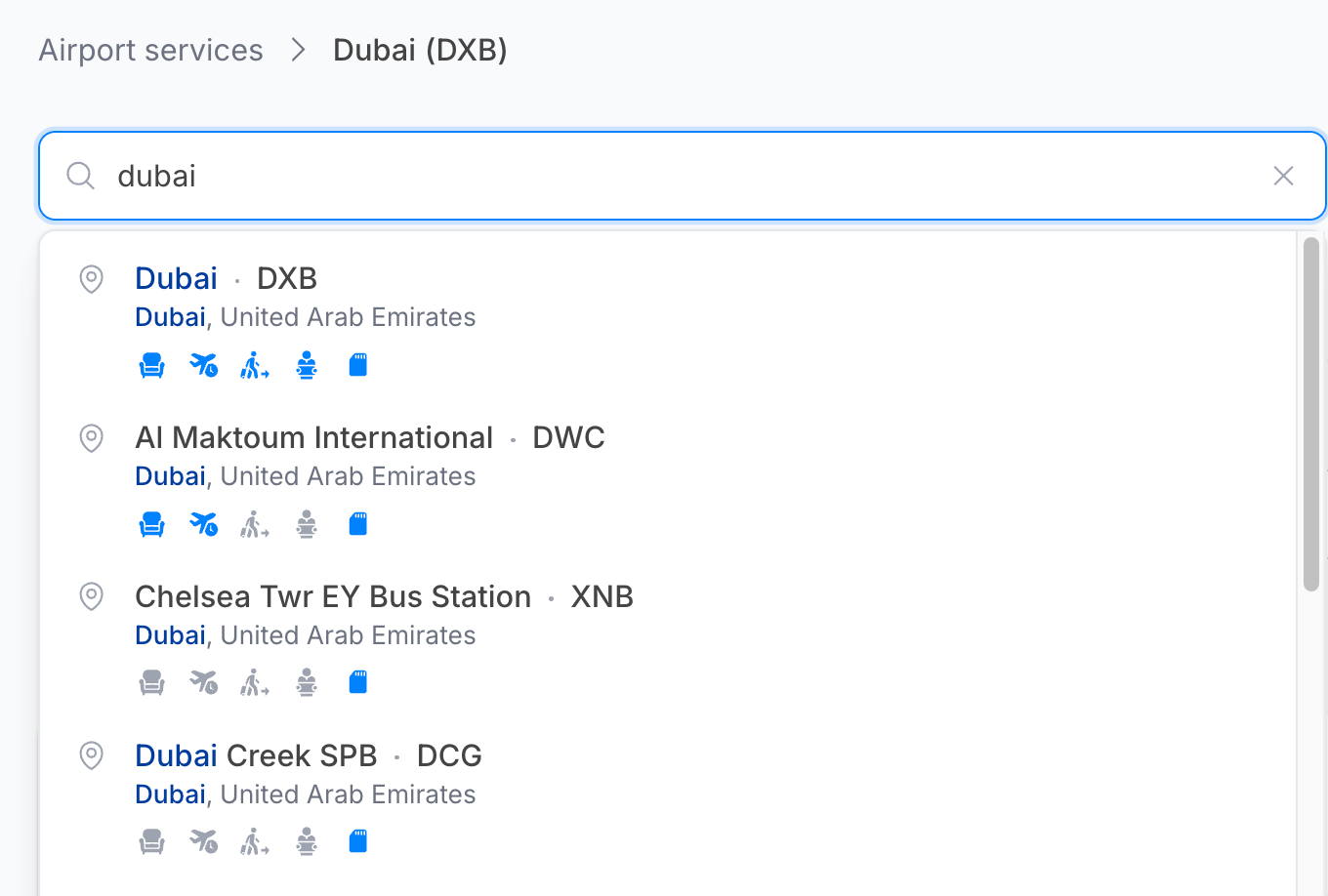
Each suggestion shows the airport name and IATA code, the city and country, and a row of small icons — one per service category. Icons in colour mean that category has products available at that airport under your contract; greyed-out icons mean it does not.
Click a suggestion to open the search results.
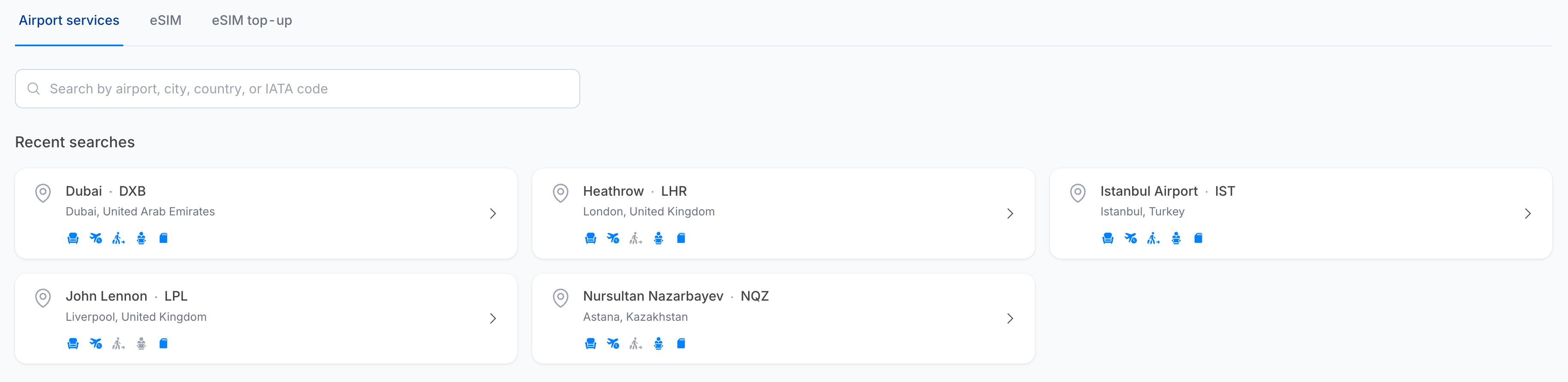
Recent searches
Before you type anything, the page shows Recent searches — cards for the airports you looked at most recently. Click one to jump straight back.
Search results
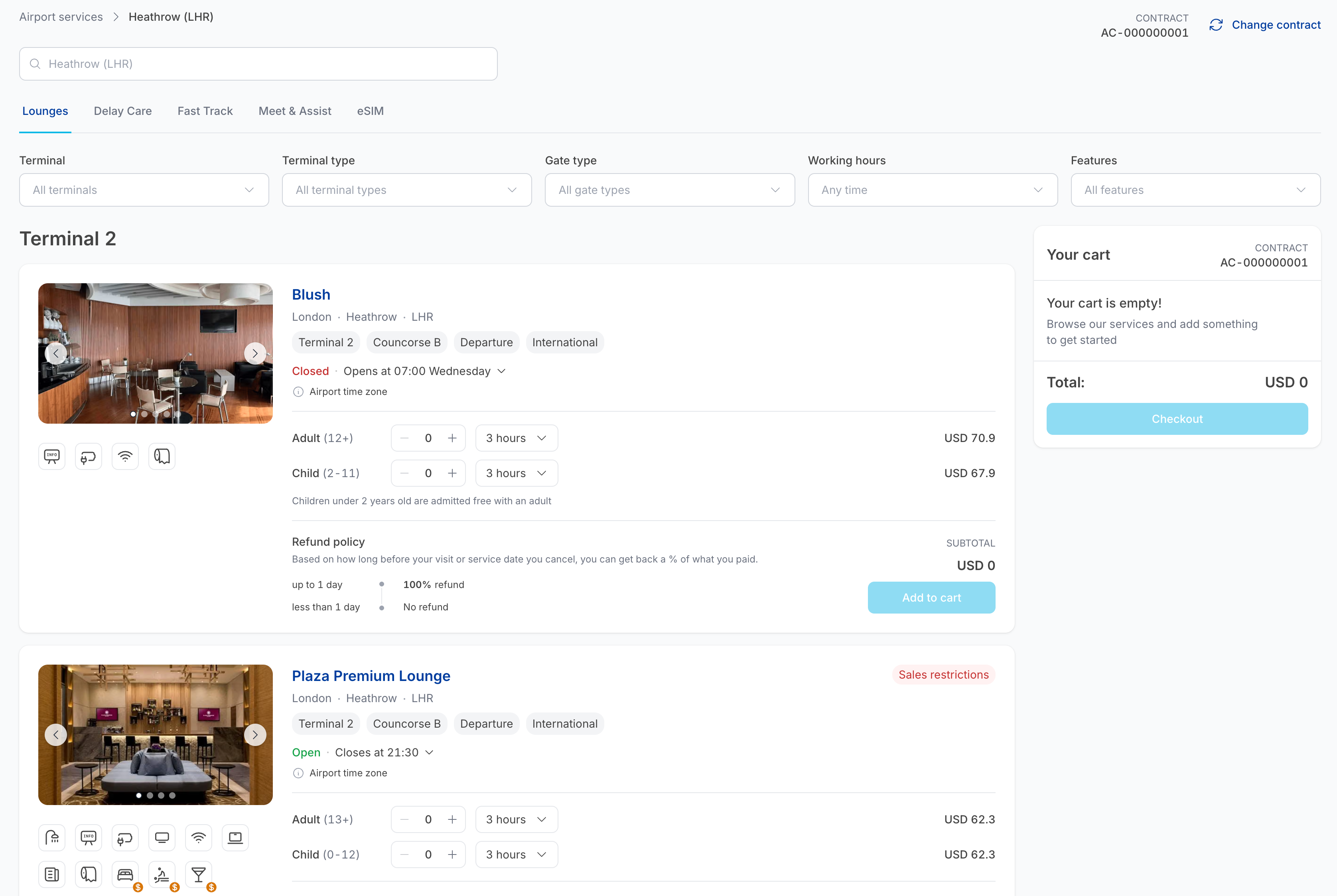
The results page has four parts:
- The search field at the top — search a different airport without leaving the flow.
- Category tabs — only the categories that actually have products at this airport are shown. Possible tabs are Lounges, Delay Care, Fast Track, Meet & Assist and eSIM.
- Filters — narrow the list. See Filters.
- Results grouped by terminal, with the cart on the right.
The breadcrumb at the top shows Airport services — <Airport (IATA)>, and the header shows the active contract with a Change contract link.
Filters

| Filter | Values | What it does |
|---|---|---|
| Terminal | All terminals, or a specific terminal name | Limits results to the chosen terminal. |
| Terminal type | All terminal types, Departure, Arrival, Transit | Limits results to the departure, arrival or transit zone. |
| Gate type | All gate types, Domestic, International | Limits results to domestic or international gates. |
| Working hours | Any time, or a time window | Shows only products open during the chosen hours. |
| Features (Lounges) | Wi-Fi, Shower, Television, and so on | Shows only lounges offering the selected amenities. |
| Service details (Fast Track, Meet & Assist) | The individual services in the package | Shows only products that include the selected services. |
The product card
Every product is shown as a card. Cards differ slightly by category, but share the same anatomy.
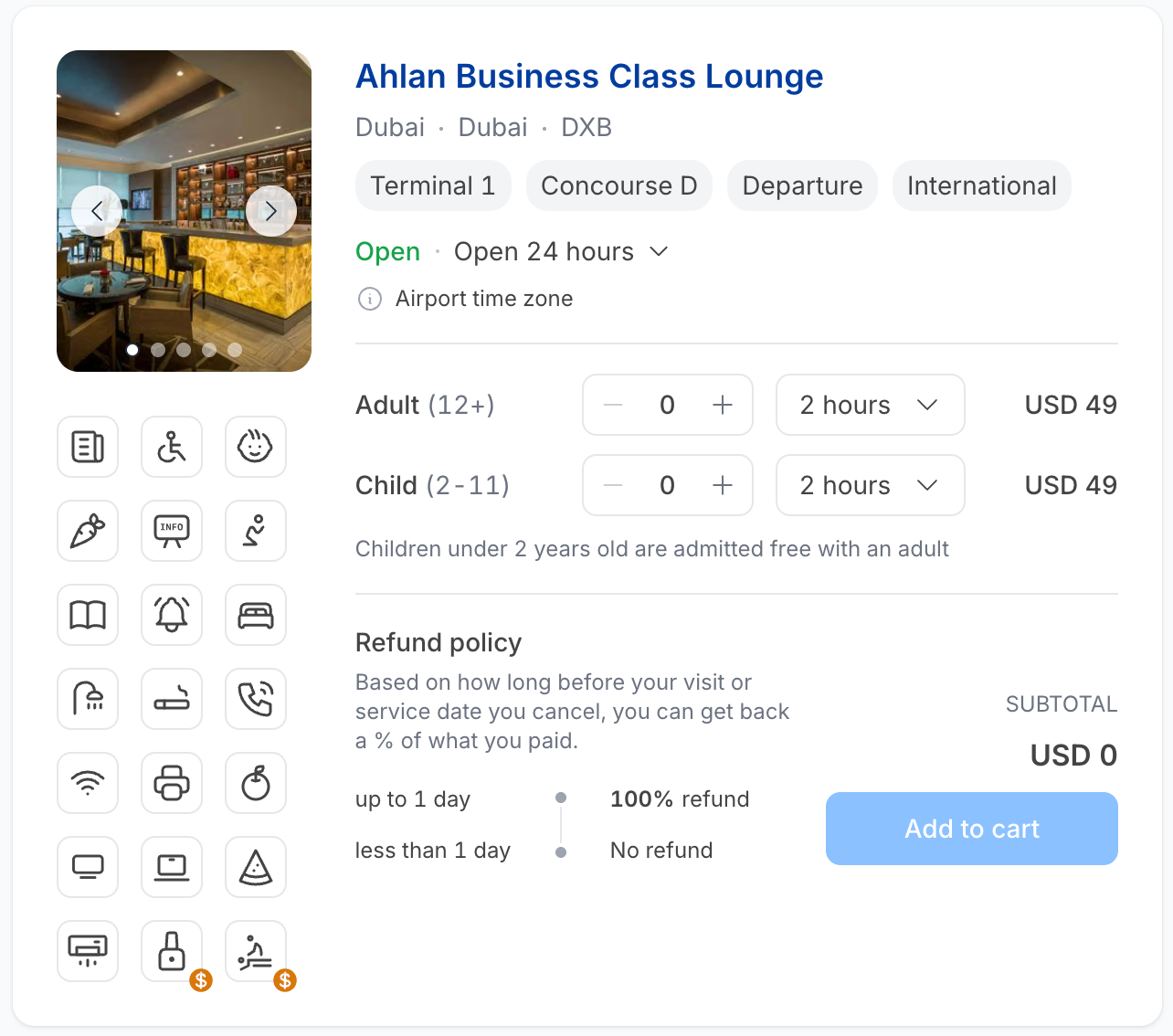
| Part | What it shows |
|---|---|
| Photo | Product photography, or a NO PHOTO placeholder. Cards with several photos have arrows to page through them. |
| Title | The product name. Click it to open the full product details page. |
| Location | City · City · IATA code. |
| Tags | Terminal, concourse, terminal type (Departure / Arrival / Transit) and gate type (Domestic / International). |
| Availability window | For products that need lead time — Available for booking from 18 August at 10:29. |
| Sales restrictions | A red badge when the product has restrictions. |
| Working hours | Open or Closed, with the next opening or closing time. Expand the chevron for the full weekly schedule. Times are in the airport time zone — this is stated under the status. |
| Passenger rows | One row per passenger type — for example Adult (12+) and Child (2–11) — each with a − / + counter and the price. Age bands vary by product. |
| Duration selector (Lounges) | A dropdown next to each passenger row — for example 3 hours. Price follows the duration. |
| Free-child note | For example Children under 2 years old are admitted free with an adult. |
| Service details (Fast Track, Meet & Assist) | An icon grid of everything included — Business Lounge, Passport Control Priority, Porter service, and so on. |
| Refund policy | A tiered list — how much you get back depending on how far in advance you cancel. |
| Subtotal | Updates live as you change the counters. |
| Add to cart | Enabled once at least one passenger is selected. |
Working hours and the airport time zone
Opening status and all times on the card are given in the airport's local time zone, not yours. The card says so explicitly under the status line. A card can show Closed and still be bookable for a future date.
Sales restrictions
A Sales restrictions badge means the product cannot be sold in some circumstances — for example only to passengers on certain routes. Click the badge to read the restriction before you sell.
Add products to the cart
- Use
−and+to set the number of adults and children. - For lounges, choose the duration of stay from the dropdown next to each passenger row.
- Check the Subtotal.
- Click Add to cart.
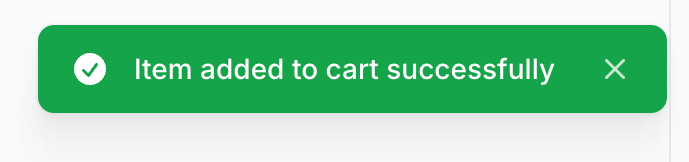
A green confirmation appears in the top-right, and the product is listed in the cart panel.
You can now search another airport and keep adding — the cart persists across searches, as long as the contract stays the same.
When you are ready, click Checkout. See Checkout and payment.
The maximum is 10 visitors per order. If you need more, split it across several orders.
Other categories
- Delay Care works differently — it is booked against a flight, not a terminal. See Delay Care.
- Fast Track and Meet & Assist use the card layout above, plus a Service details grid and, for some products, a flight lookup. See Fast Track and Meet & Assist.